
Category: User Data | Type: Overview of Roles & Manager Access
What you'll find in this guide
Roles
Roles should be listed in the 'Roles' column of your upload file. Each role should be separated with a comma. An example Roles cell might look like:
Employee,Manager - Surveys,Manager - Answers,Manager - Recognitions
No Update
There's no need to list all roles every time you upload your data. If there are no changes to manager or admin permissions, you can simply input {NO_UPDATE} to both Roles and Authorized Attribute Segments.
Updating access in the platform
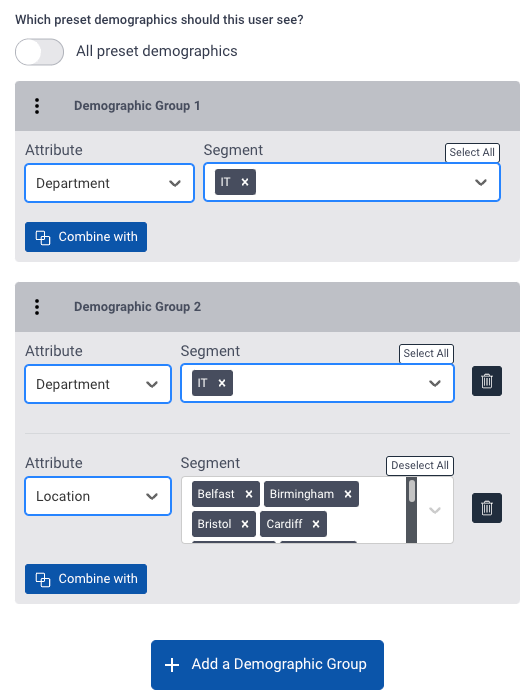
The uploader can be used to update access in bulk, but don't forget you can use the user section of your platform to update access. Simply find the user you'd like to update, click '...' -> 'Edit user' -> 'Access' tab.
Manager Roles
|
Role Names |
Explanation |
|
Employee |
Every user must have this role. Allows them to complete surveys. |
|
Manager - Suggestions |
Allows user to view Open Door comments |
|
Manager - Surveys |
Allows user to view survey results (not text comments) |
|
Manager - Recognitions |
Allows user to view Hive Fives |
|
Manager - Messenger |
Allows the user to use the Hive Messenger feature |
|
Manager - Answers |
Allows the user to view text comments for Survey results |
|
Manager - All Segments |
Allows the user to view all survey results in Hive for all attributes & segments |
|
Manager - Demographics |
Allows the user to see the results of demographic (results segmentation) questions |
|
Manager - Surveys - Key Driver Analysis - Organization |
Allows the user to view Key Drivers for the whole organisation |
|
Manager - Surveys - Key Driver Analysis - Own |
Allows the user to view Key Drivers for the attributes and segments they have access to |
|
Manager - Surveys - Onboarding |
Allows the user to view onboarding survey results |
|
Manager - Surveys - Exit |
Allows the user to view exit survey results |
|
Manager - Actions |
Allows the user to use Hive Actions |
|
Manager - Surveys - 360 |
Allows the user to view 360 survey results |
|
Manager - Reports |
Allows the user to generate Essential Team reports |
Administrator Roles
|
Role Names |
Explanation |
|
Administrator - Users |
Allows the user to view the User Section of Hive and make changes |
|
Administrator - Survey Builder |
Allows the user to build, edit and send surveys |
|
Administrator - Recognitions |
Allows the user to send reminders for Hive Fives |
|
Administrator - Suggestions |
Allows the user to send reminders for Open Door |
|
Administrator - Organisations |
Allows the user to change the organisation name & logo as well as customise Hive features |
|
Administrator - Integrations |
Allows the user to set up HRIS/SFTP integrations and use Hive Open API (if available) |
|
Administrator - Surveys |
Allows the user to send survey reminders |
|
Administrator - Benchmarking |
Allows the user to view benchmarking |
|
Administrator - Survey Builder - Onboarding |
Allows the user to build onboarding surveys |
|
Administrator - Survey Builder - Exit |
Allows the user to build exit surveys |
|
Administrator - Actions |
Allows the user to view the actions dashboard |
|
Administrator - Survey Builder - 360 |
Allows the user to build 360 surveys |
|
Administrator - Reports |
Allows the user to generate In-Depth insight reports |
Authorised Attribute Segments
The Authorised Attribute Segments (AAS) column is used to signify which attributes and segments in your Hive the manager can see.
The format for these strings is Attribute:Segment
You can combine multiple attributes and segments using a comma. For example, Department:IT+Location:Newcastle
An example of giving access to multiple attributes and segments: Division:HR,Division:HR+Location:*,Division:HR+Department:*
- All segments are case sensitive
- Spaces are taken into consideration, only use spaces in segment or attribute names
- If your segment name includes commas (example 'HR, People & Communication' - you must surround the segment name in double quotes, so, "HR, People & Communication"
- * means all segments under that attribute
- All access must be specified in the string, if you only include one attribute and segment that is all the user will see
The Authorised Attribute Segment column in your file should be named 'Authorized Attribute Segments'

🎓 Other Useful Information
📖 Confused by a term? View our full Data uploader Glossary for a complete breakdown of Hive data terminology.
Require further technical assistance? Contact Our Support Team