
Q: What is platform access in Hive and what can I do as a manager?
Q: I’m logging in as a manager for the first time.
Q: Does Hive use Two-Factor Authentication (2FA)?
Q: How do I get the right access?
Q: How can managers analyse survey results?
Q: What are results segmentation and how can I use it?
Q: Are employees’ identities protected with results segmentation filters applied?
Q: Is employee feedback still anonymous for managers?
Q: What are Hive heatmaps and why are they useful?
Q: What does it mean when the segment results are greyed out in a heatmap?
Q: Can I compare different surveys in a heatmap?
Q: What is Open Door and how does it benefit managers?
Q: How can I respond to Open Door comments?
Q: What can managers see in Hive Fives?
Q: Can managers respond to Hive Fives?
Q: What other tools support managers in Hive?
ℹ️ Troubleshooting for Managers
Q: What is platform access in Hive and what can I do as a manager?
A: Manager access is a set of permissions that determines what you can see and do in Hive. Manager access levels are determined by your organisation's Hive Admin.
As a manager, you can:
- View survey results, including question-level scores and free-text comments.
- Access Hive features like Open Door feedback, comments, heatmaps, and Hive Fives dashboards.
- See only the segments assigned to you (e.g., your department or location).
- See ‘Q: What are segment groups?’ below for more information.
Example: You manage the Marketing team in Newcastle and your Hive Admin has set you up with access to the marketing team. This means you will only see survey results, Open Door comments, and Hive Fives for employees for that segment, not across the entire company.
Q: I’m logging in as a manager for the first time.
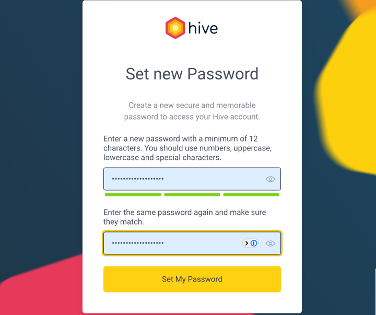
A: Managers on the Hive platform are required to use a username and password to log in. Upon assignment to a Manager role, an email will be automatically sent to you, prompting you to set up your Hive password.
Q: How do I log in to Hive?
A: Log in to your organisation's Hive via desktop or mobile using your username (email or mobile number) and password.
Q: I can’t access my account.
A: If you have Manager access and are having trouble accessing the platform:
- Try the “Forgot Password” option.
- Contact your organisation's Hive Admin, and they can send you an email to reset your password.
- If issues persist, raise a ticket with Hive Support.
Q: Does Hive use Two-Factor Authentication (2FA)?
A: Some organisations enable 2FA for extra security. After entering your username/password, you may be prompted to enter a 6-digit code sent to your registered mobile phone via SMS. To enable 2FA, add your mobile number in your profile and follow the prompts.
If you lose access to your phone, contact Hive Support or your internal Hive Admin, HR, or People Team to regain login access.
Q: How do I get the right access?
A: Managers cannot change their own permissions. Only your organisations Hive Admins can assign or remove access.
If you need your access updating, speak to your organisation’s Hive Admin, HR, or People Team. They manage permissions.
Survey Results & Analysis
Q: What are segment groups?
A: Segment groups are the demographics based on specific attributes within your organisation; such as Division, Location and Gender. Segment groups define which employees’ feedback a manager can access.
Example: You might have access to ‘Sales Department’ and ‘Administration Team’ segments but not the ‘Marketing team’.
Go to Segment Groups for more information.
Q: How can managers analyse survey results?
A: Managers with access can view high-level results, question-level scores, sentiment distributions, and free-text comments for surveys they are permitted to see. Results are filtered by segment access to ensure relevance and confidentiality.
To ensure you can see the necessary results when you log in, your Hive Admin should have already configured the correct permissions for your account.
If you are having any issues please refer to troubleshooting below or speak to your Hive Admin.
Q: What are results segmentation and how can I use it?
A: Results segmentation or SSDs let managers filter survey results based on optional employee characteristics captured in segmentation questions. This helps you compare how different groups respond and uncover insights.
How managers can use it:
- Apply filters in survey dashboards to view responses from specific groups (e.g., remote vs. in-office employees, or employees who feel supported vs. those who don’t).
- Compare segment responses side by side to identify trends and action areas.
Example: You can filter survey results by “Usually work remotely” to see if remote employees feel less supported than office-based employees, while maintaining full confidentiality - only aggregated data is visible.
Tip: Segmentation questions are optional and anonymous; employees can select “prefer not to say,” and Hive ensures confidentiality limits are respected.
Q: Are employees’ identities protected with results segmentation filters applied?
A: Yes. Confidentiality limits ensure individuals cannot be identified. Only aggregated data is visible.
Q: Is employee feedback still anonymous for managers?
A: Yes. Even with manager access, employee identities are protected for surveys, Open Door, Hive Fives, and Messenger feedback. Managers see aggregated or anonymous data only.
Heatmaps & Visual Insights
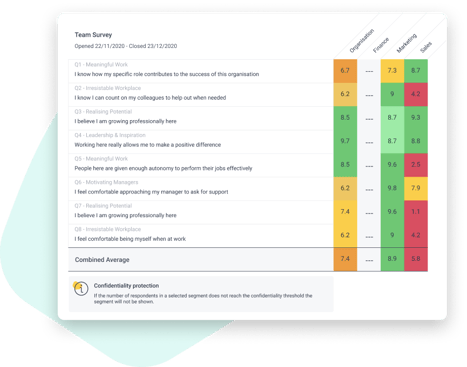
Q: What are Hive heatmaps and why are they useful?
A: Heatmaps offer a visual breakdown of average scores and response rates across selected segments, helping you spot high and low performance areas quickly and compare groups at a glance.
Q: How do I access a heatmap?
A: Click the heatmap icon on the survey dashboard to compare survey data, or access the heatmap for an individual survey within a selected survey.
Q: What does it mean when the segment results are greyed out in a heatmap?A: If a segment doesn’t meet the organisation’s confidentiality threshold (typically a minimum number of responses), the results data is hidden to protect confidentiality.
Q: Can I compare different surveys in a heatmap?
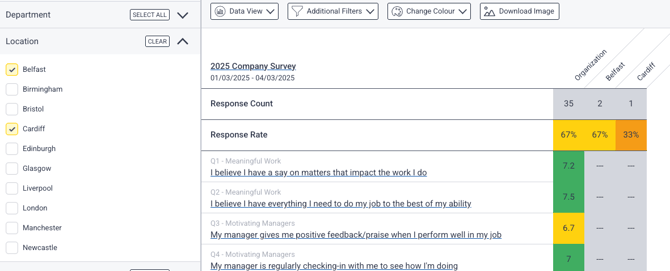
A: Yes - you can select two or more surveys and view their heatmaps on the same page for comparison. You can also download heatmaps or export as CSV for reports. Please note that you cannot create a combined Heatmap; you will need to view them separately for a comparison.
Open Door & Feedback Channels
Q: What is Open Door and how does it benefit managers?
A: Open Door allows employees to give anonymous feedback, concerns and ideas. Managers can:
- Review comments
- Filter results
- Act on suggestions
Q: How can I respond to Open Door comments?
A: If Messenger is enabled and you have the right permissions, you can start an identity-protected conversation with the commenter — for example, to ask for more detail or share next steps.
Please note: Access to Open Door and other Hive features is determined by your organisations Hive Admin. If you need your access updating, speak to your organisation’s Hive Admin, HR, or People Team. They manage permissions.
Hive Fives (Recognition)
Q: What can managers see in Hive Fives?
A: Managers can:
- View dashboards
- Filter by segment or timeframe
- Access status boards
Example: View all Hive Fives received by the Newcastle Sales team in Q4 to celebrate achievements.
Q: Can managers respond to Hive Fives?
A: Yes - if Messenger is enabled, managers can start an anonymous conversation from within a given Hive Five.
Manager Tools & Tips
Q: What other tools support managers in Hive?
A: Hive Actions helps turn insights into structured action plans with owners and due dates.
- Use Actions to track follow-ups from surveys, Open Door, or Hive Fives.
Example: After reviewing a survey highlighting low engagement in Marketing, create a Hive Action for team leads to implement engagement initiatives.
🛠️ Troubleshooting for Managers
“I can't see my team’s survey results.”
This usually means:
- Your segment access is limited, or
- The segment doesn’t meet the confidentiality threshold.
Contact your Hive Admin to review your access.
“Heatmap results segments are greyed out.”
This happens when:
- The group doesn’t meet the minimum response threshold.
- Showing the data could reveal individuals.
This is expected behaviour to protect confidentiality.
“I’m missing some features (e.g. Heatmaps, Open Door, Hive Fives).”
Features only appear if you have permission or your organisation has these enabled.
Speak to your Hive Admin or People/HR team — Your organisation may not have these enabled or they need to adjust your access.
“I’m seeing results for the wrong team.”
Your segment groups may be incorrect.
Contact the Hive Admin or People/HR team, this is who manages Hive access in your organisation.
“I can’t use Messenger in the platform.”
Your organisation must have the feature enabled and you need the correct access.
Ensure you have checked the below with your Hive Administrator or People/HR team;
- Messenger is enabled within your Hive platform
- Your permissions have been updated correctly
“I don’t have access to Hive at all.”
Access must be granted by your organisation.
Contact your organisations Hive Admin or People/HR team - they can set you up.
ℹ️ Manager Capabilities in Hive — Quick Reference Table
|
Feature / Area |
Managers CAN |
Managers CANNOT |
|
Platform Access |
View data and features permitted by their assigned access and segments. |
Change their own permissions or segment groups (Admins only). |
|
Survey Results |
View anonymised results, scores, and comments for segments they have access to. |
See individual responses or identify employees. |
|
Results Segmentation |
Filter results by employee-selected attributes. |
View segmentation data that breaches confidentiality thresholds. |
|
Heatmaps |
Compare segments, download heatmaps, and view trends across surveys. |
Access heatmaps for segments they are not authorised to view. Create combined heatmaps. |
|
Open Door (Anonymous Feedback) |
Read anonymous feedback and respond via Messenger (if enabled). |
See who submitted the comment or bypass anonymity. |
|
Messenger |
Reply to survey or Open Door comments anonymously (if enabled). |
Identify the person leaving feedback. |
|
Hive Fives (Recognition) |
View recognition across their permitted segments, respond via Messenger (if enabled). |
Edit or delete Hive Fives; see private Fives they are not part of. |
|
Hive Actions |
Create, assign, track, and complete action plans (if enabled). |
Access actions created in segments they are not permitted to view. |
|
Employee Profiles / HRIS Data |
View limited segment information if access allows. |
Edit employee data (Admins only). |
|
General Navigation |
Access dashboards, insights, and features relevant to their team. |
Access admin settings or global organisation-wide data without permission. |