
1. Introduction
Hive’s Authentication Framework gives your organisation full control over how employees and managers access the platform. As an admin, you can choose from a range of modern, secure login methods - and combine them to match your organisation's needs and security requirements.
All four methods described in this guide are:
- Available through your Account Settings page with no IT department involvement required
- Designed to keep login fast and frictionless for employees and managers
- Compliant with Cyber Essentials, which mandates Multi-Factor Authentication (MFA) for all cloud services
This guide is for administrators only. The settings described here affect how everyone in your organisation logs in.
🚨 Changes take effect immediately.
2. Where to find Authentication Settings
All authentication options are configured in one place:
|
1 |
Log in to your Hive |
|
2 |
Click Settings |
|
3 |
Select Account Settings from the menu. |
|
4 |
Navigate to the Authentication tab. |
💡Pro Tip: You can enable multiple authentication methods simultaneously. For example, you might enable Single Sign-On (SSO) and Secure Magic Links as a fallback option - your employees will see all available options on the sign-in page.
3. Authentication Methods at a Glance
The table below summarises all four authentication methods available in Hive. Each is described in full detail in the sections that follow.
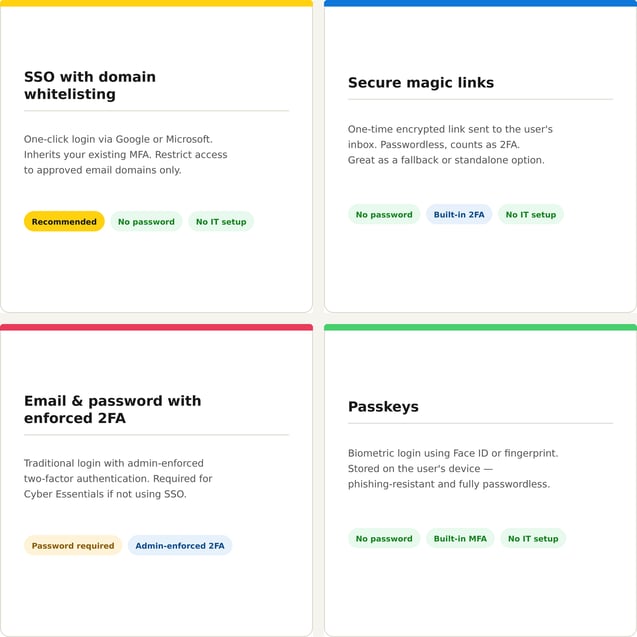
Recommended Setup
We recommend SSO with Domain Whitelisting for organisations using Google Workspace or Microsoft. It delivers enterprise-grade security with zero technical setup.
4. Recommended Configurations
Hive allows you to enable any combination of authentication methods. The following configurations are recommended based on your organisation's situation.
Organisation using Google Workspace or Microsoft 365)
Recommended Setup: Enable SSO (Google or Microsoft) + Domain Whitelisting
This is the recommended setup for most corporate organisations. It provides:
- Instant, one-click login for all employees
- Inherited MFA from your existing workspace — no additional 2FA setup needed
- Domain Whitelisting to restrict access to authorised users only
Mixed Workforce (Some Users Without Work Email)
Recommended Setup: Enable SSO + Secure Magic Links as a fallback
If some of your employees do not have a corporate Google or Microsoft account, enable both SSO and Magic Links. Employees with a corporate account use SSO; those without can still receive a Magic Link to their personal email address.
High-Security or Cyber Essentials Organisation
Recommended Setup: Enable SSO + Domain Whitelisting + Enforce 2FA for any remaining email/password users
For organisations pursuing Cyber Essentials certification, enable SSO with Domain Whitelisting as your primary method. Additionally, enable Enforced 2FA to ensure any users who must use email/password login are also fully covered. Passkeys can be offered as a high-security alternative to passwords for technical users.
🙌 Frictionless Standard Setup
Recommended Setup: SSO or Enable Secure Magic Links or Passkeys
For organisations that want the easiest possible login experience without managing passwords, enabling SSO,Magic Links or Passkeys provides a fully passwordless experience for all users, with no IT configuration required.
🎓 Useful Information and methods
Require further technical assistance? Contact Our Support Team